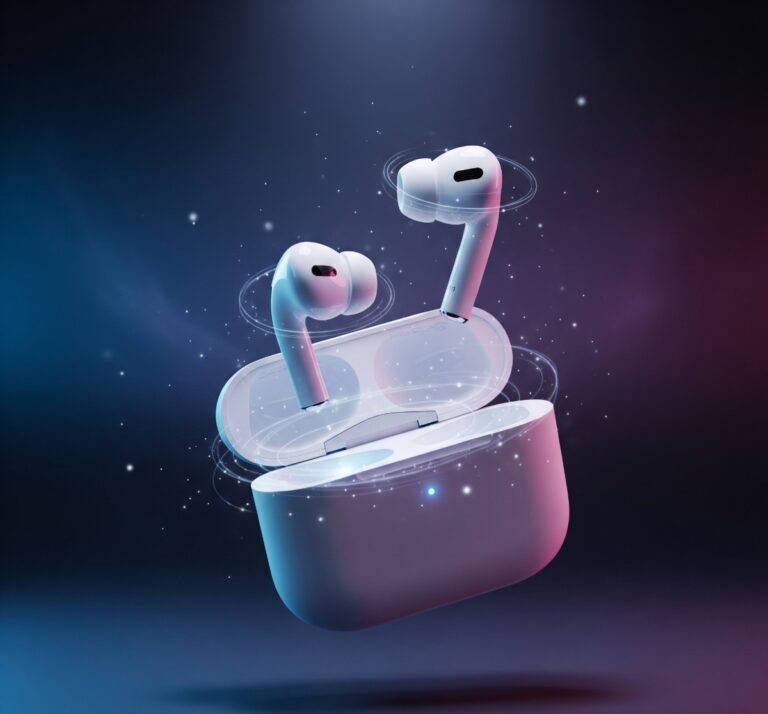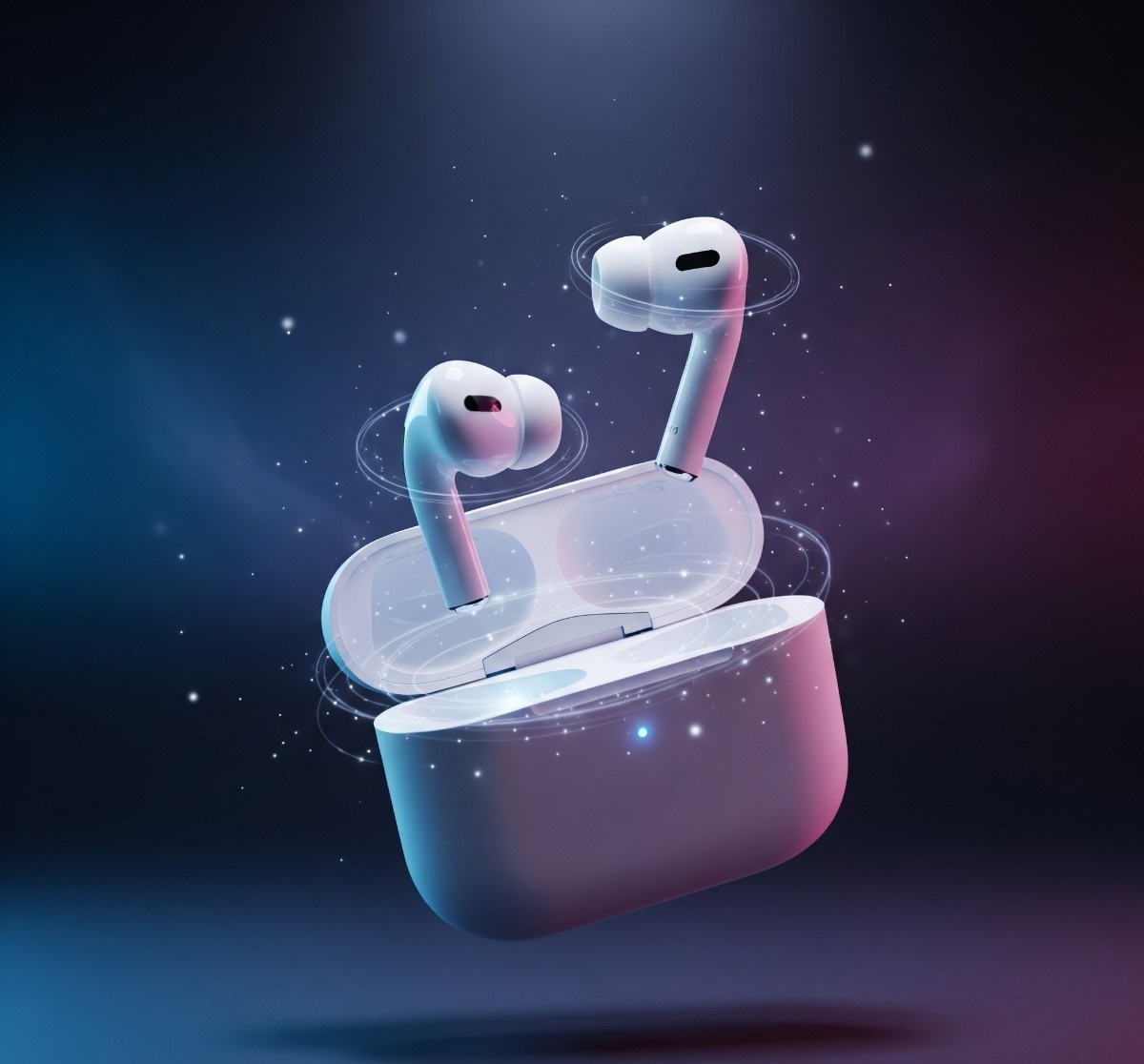

AirPods have changed how we enjoy audio, handle calls, and operate our gadgets. Easy integration with Apple’s systems is key, but how do they work with other devices? This guide will show you how to connect your AirPods to various devices, from your computer and game systems, even sharing sounds with someone else.
How to Connect AirPods
Pairing your AirPods is the initial step towards untethered sound. The method differs slightly depending on the type of device you’re using, but it’s generally easy. The essential thing is knowing how to activate pairing mode on your AirPods.
For Apple gadgets (iPhone, iPad, Mac), it’s thanks to the H1 or H2 chip. Just open the AirPods case near your unlocked device, and a setup animation will appear on your display. Tap “Connect,” and you’re finished. What’s great? If you’re logged into your iCloud account, your AirPods will automatically be accessible on all your other compatible Apple devices linked to that same account. No need to pair them again with your iPad or MacBook.
For Android devices or Windows PCs, the process involves standard Bluetooth pairing. With your AirPods inside their charging case, open the lid. Press and hold the tiny, round setup button on the back of the case until the status light inside (or on the front, depending on the model) begins flashing white. This signals that your AirPods are in pairing mode. Now, go to the Bluetooth settings on your Android phone or PC, scan for new devices, and choose your AirPods from the list to finalize the connection. You’ll miss out on certain features like automatic ear detection and easy Siri access, but the core audio experience stays great.

How to Connect AirPods 4 to a Laptop
Whether you’re using a sleek MacBook for creative work or a powerful Windows laptop for business, connecting your AirPods for calls and music is essential. The latest generation, sometimes referred to as AirPods 4, follows the same simple connection principles.
On a Mac:
As previously stated, if your iPhone and Mac share the same Apple ID, your AirPods should show up as an audio option on your Mac automatically if they are already paired. Just place them in your ears, choose your AirPods from the list of output devices, and click the Sound or Bluetooth icon in the menu bar at the top of your screen to switch to them. To pair them for the first time, open the case, press and hold the setup button, and then select System Settings > Bluetooth on your Mac. Click “Connect” once your AirPods are listed among the nearby devices.
On a Windows PC:
Connecting to a Windows 10 or Windows 11 laptop is just as easy.
- Ensure your AirPods are in their case with the lid open.
- Press and hold the setup button on the back of the case until the status light flashes white.
- On your Windows PC, navigate to Settings > Bluetooth & devices.
- Click “Add device” and then select “Bluetooth.”
- Your PC will scan for available devices. Choose your AirPods from the list to pair them. Your laptop will now use them for all audio output and microphone input.
How to Connect AirPods to a PS5
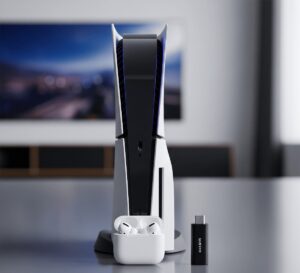
Sadly, the PlayStation 5 does not support Bluetooth audio devices natively. Nevertheless, gaming with the immersive sound of AirPods is an amazing experience. Gamers often get frustrated by this, but there are two dependable ways to connect.
A USB-C or USB-A Bluetooth audio adapter is the most widely used solution. These tiny dongles fit straight into a USB port on the PS5. To pair one, just plug the adapter in, set it to pairing mode (usually by pressing a button on the adapter), and then pair your AirPods by holding the button on their case. They will attach to the adapter directly. Once paired, you might need to choose the USB adapter as your output device in the PS5’s audio settings (Settings > Sound > Audio Output).
There’s a second way that uses your TV. You can completely avoid using the PS5 for music if your smart TV has Bluetooth built in. Just use your TV’s settings menu to pair your AirPods with it directly. The TV will wirelessly send the sound to your connected AirPods since the PS5’s audio is being sent to the TV through the HDMI cable.
How to Connect Air-pods to an Xbox
Similar to the PS5, the Xbox Series Xnow not have built-in Bluetooth audio support. This indicates which you are unable to at once join your AirPods to the console. However, there are smart methods to avoid this problem.
One of the perfect methods is to use the Xbox app in your telephone. Start via pairing your telephone and AirPods as you typically would. After downloading and launching the Xbox app, join it on your tool. Within the application, you may start a “Remote Play” session. This permits you to move video and song without delay in your phone from your console. After that, you can join your AirPods and wirelessly concentrate in your game at the same time as the audio performs. This is an extraordinary option for solo play.
As an opportunity, you should buy a Bluetooth audio transmitter that plugs into the 3.5mm headphone jack at the Xbox controller. These small gadgets get hold of electricity from the controller and transmit audio signals through Bluetooth. Your AirPods will connect to the transmitter while you placed them in pairing mode. By doing this, your controller essentially turns into a wi-fi audio hub on your sport and chat sounds.

How to Connect Two Air-pods to One Phone
One of Apple’s best audio features is the ability to share what you’re listening to with a friend who also has AirPods or compatible Beats headphones. This feature, called Audio Sharing, is perfect for watching movies on an iPad during a flight or listening to a new album together.
- Start by connecting your own (the first) pair of AirPods to your iPhone or iPad and play some audio.
- Open the Control Center on your device (swipe down from the top-right corner).
- In the Now Playing tile, tap the AirPlay icon (it looks like a triangle with circles).
- You will see your connected AirPods. Below them, tap the “Share Audio” button.
- Now, bring your friend’s AirPods (in their case) close to your iPhone and open the lid. A prompt will appear on your screen to temporarily pair the second set. Follow the on-screen instructions.
- Once connected, you will see both pairs of Air-pods listed, and you can even control the volume for each pair independently.
[post_faqs]
Conclusion
While Air-pods are designed for the most seamless integration with Apple products, they remain incredibly versatile Bluetooth earbuds. They can be used with a vast range of devices beyond the Apple ecosystem. With a little know-how and the occasional clever workaround involving an adapter or an app, you can enjoy the high-quality, wireless freedom of AirPods on your laptop, gaming consoles, and even share your audio with a friend from a single device.