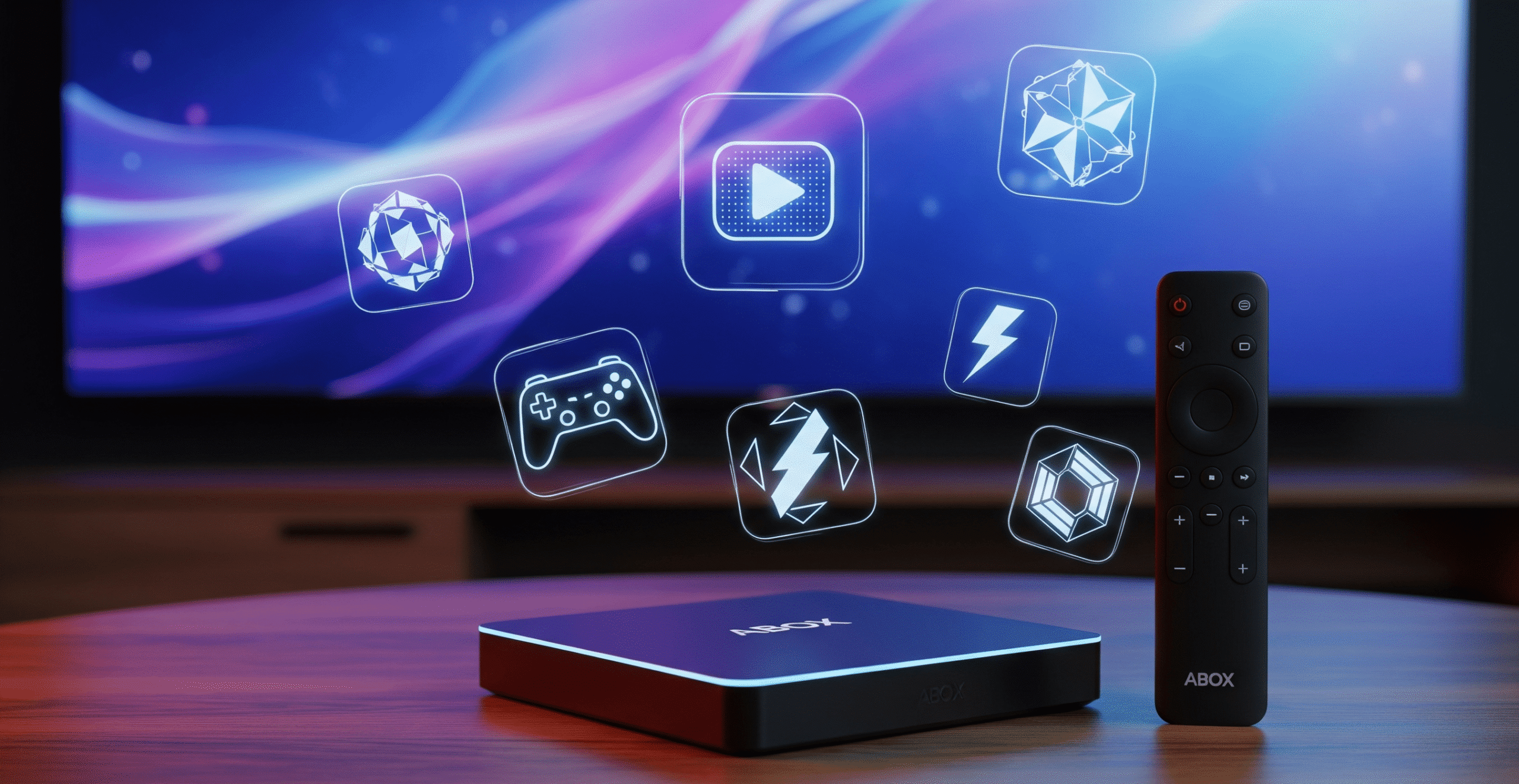

So you’ve got your ABOX Android TV Box set up, but are you tapping into its full potential? This powerful little device is packed with features that can dramatically improve your viewing experience, but many of its best functions are hidden just beneath the surface. If you want to move beyond the basics, you need the right set of tips.
This guide provides 10 essential ABOX Android TV Box tricks that will turn you into a power user. Forget just scrolling through Netflix; let’s unlock what your device can truly do.
1. Customize Your Home Screen Like a Pro
Your home screen is your command center, so it should be organized for your specific needs, not a generic default. A clean interface makes finding what you want to watch much faster.
- Reorder Apps: Highlight any app in your favorites row, then press and hold the “OK/Select” button. You can now move it to prioritize the services you use most.
- Manage Channels: Don’t care for a specific app’s recommendations? Scroll down to its content row (channel), navigate left, and select the “Customize Channels” option to turn entire rows on or off.
2. Sideload Apps Not Found in the Play Store
One of the best tricks for any Android device is the ability to “sideload”—install apps from outside the official Google Play Store. This gives you access to a much wider universe of applications.
First, install a browser (like “Puffin TV”) and a file manager (like “FX File Explorer”) from the Play Store. Use the browser to download an .apk file from a trusted, external source like APKMirror. Finally, open your file manager to find and install the file.
(Note: You’ll need to grant permission first. Go to Settings > Apps > Security & Restrictions and enable installations from “Unknown Sources”).
3. Use Your Smartphone as a Remote Control
Typing out long passwords or search terms with a standard remote is a pain. Your smartphone is the perfect solution.
Download the Google TV app on your Android or iOS device. As long as your phone is on the same Wi-Fi network as your ABOX box, you can connect to it within the app. This gives you a touch-based remote with a full keyboard, saving you a lot of time and frustration.
4. Expand Your ABOX Android TV Box Storage
If you’re an app or game enthusiast, the built-in storage can fill up fast. The fix is simple and affordable.
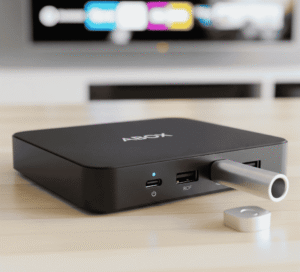
Plug a USB 3.0 flash drive or external hard drive into a USB port on the ABOX. Navigate to Settings > Device Preferences > Storage. Select your USB drive and choose the option to “Format as device storage.” This integrates the drive with your system, giving you a massive storage boost.
5. Speed Up the Interface with Developer Options
Want to make your ABOX feel even faster? This classic Android trick reduces system animations, making the user interface feel much snappier.
Go to Settings > Device Preferences > About. Scroll down to “Build” and click on it repeatedly (about 7 times) until you see the message, “You are now a developer!” Go back one menu, open the new “Developer options,” scroll down, and change all three “Animation scale” settings from 1x to 0.5x.
6. Master Google Assistant Voice Commands
The voice button on your remote is your most powerful tool. For more ideas on what you can do, check out our complete guide to using the ABOX Android TV Box. Go beyond simple searches and try specific, contextual commands.
- “Open YouTube and play lo-fi hip hop radio.”
- “On Netflix, search for movies starring Ryan Gosling.”
- “What’s the weather like tomorrow?”
- “Dim the living room lights.” (if you have smart home devices connected).
7. Cast Anything with Built-in Chromecast
Your ABOX has Chromecast functionality built right in. This means you can send videos, music, and even browser tabs from your phone, tablet, or laptop directly to your TV screen. In any supported app (like YouTube, Spotify, or Chrome), just tap the “Cast” icon and select your ABOX TV Box.
8. Pair Bluetooth Headphones for Private Listening

This is a game-changer for late-night viewing or for tuning out household noise. You can easily connect your favorite Bluetooth headphones or speakers.
Put your Bluetooth device in pairing mode. On your ABOX, go to Settings > Remotes & Accessories > Add accessory. Select your device from the list to pair it. Now, all TV audio will stream directly to your headphones.
9. Clear App Cache to Fix Performance Issues
If a particular app becomes slow, buggy, or starts crashing, this is one of the most effective ABOX Android TV Box tricks to fix it.
Go to Settings > Apps > See all apps. Select the app that’s giving you trouble and click on “Clear cache.” This removes temporary files without deleting your login information or settings and often resolves many performance problems. For more solutions, see our guide to troubleshooting common ABOX issues.
10. Install a File Manager for Total Control
A good file manager is essential for any power user. Apps like Solid Explorer or FX File Explorer from the Play Store allow you to easily access your downloads, manage files on a connected USB drive, and find and install the .apk files you downloaded in trick #2.
By putting these ten ABOX Android TV Box tricks to use, you’ll unlock a faster, more personalized, and vastly more powerful entertainment experience.
[post_faqs]
Conclusion
10 Tips are more than just simple tricks; they are the keys to unlocking the true power and flexibility hidden within your streaming device. By moving beyond the default settings, you are taking full control of your entertainment. You’ve learned how to create a faster, more personalized, and vastly more capable media hub tailored specifically to your needs. Now go ahead, try them out, and enjoy the upgraded experience.